
A work laptop and a personal computer on the same desk usually means two keyboards, two mice and a fight over the monitors. You don't need two of everything. The setup in the photo above runs two laptops and two monitors from one keyboard and one mouse.
There are a few ways to get there. They differ in price, in how many buttons you press to change computers, and in how picky they are about your monitors.
First, what are you sharing?
Two different things travel between a computer and your desk, and they're shared by different hardware:
- USB devices: keyboard, mouse, webcam, headset dongle, printer.
- Video: the picture going to your monitors.
Sharing USB devices is cheap and nearly foolproof. Sharing video is where the cost and the fine print are. Keep the two apart in your head and the options below make sense.
The options at a glance
| Setup | To change computers | Best when |
|---|---|---|
| USB switch + your monitor's inputs | Press the switch, then change the monitor's input | Your monitor has two inputs |
| USB switch + HDMI switch | Press two buttons | Your monitor has one input |
| KVM switch | Press one button | You switch many times a day |
| One dock, two laptops | Move one cable | Both computers are USB-C laptops |
| Software only | Move the mouse across | Each computer keeps its own screen |
A USB switch and your monitor's own inputs
This is the cheapest setup that works well, and the one I'd try first. Most monitors have at least two inputs, for example an HDMI port and a DisplayPort. Plug one computer into each. The monitor is now connected to both all the time, and you choose which one to look at with the input button on the monitor.
Then a USB switch takes care of the keyboard and mouse. Your devices plug into the switch, the switch plugs into both computers, and a button on it sends them to one or the other.

Similar to the one I use
USB Switch, USB 3.0 Switcher 2 Computers Share 4 USB for PC Mouse Keyboard Printer Scanner, USB KVM Switch Selector Compatible with Windows, Mac, Linux
Four USB 3.0 ports shared between two computers at the press of a button, with no drivers to install.
The video signal never passes through a switch, so resolution and refresh rate stay exactly as they were. The cost is that changing computers takes two actions: the button on the switch, and the input menu on each monitor.
Add an HDMI switch for a single-input monitor
If your monitor has only one input, or its input menu is slow to get through, put a small HDMI switch in front of it. Both computers plug into the switch and one cable goes on to the monitor.

Anker HDMI Switch, 2 in 1 Out HDMI Switcher, Monitor Switch with 4K@60Hz | Smooth Finish, Supports HDR/3D/Dolby, for Laptops/PC/Xbox/PS5/PS4/Projector, and More
Connects two computers to one monitor at up to 4K 60Hz, and switches between them by hand.
Check the resolution and refresh rate the switch supports against your monitor. A high refresh rate gaming monitor needs a switch that can carry it.
A KVM switch: one button for everything
A KVM (keyboard, video and mouse) switch combines the two jobs. One press moves the keyboard, the mouse and the monitor to the other computer. If you change computers many times a day, that convenience is worth paying for.

UGREEN Displayport KVM Switch 2 in 1 Out, 8K@60Hz, Aluminum, 4 USB3.0 Ports | 4K@240Hz, Sharing 1 Monitor Keyboard Mouse U-Disk Printer Webcam, with 2 DP Cables, 2 USB A to C Cables, no EDID Emulation
Shares one DisplayPort monitor and four USB devices between two computers.
There's more to check before buying one:
- The video connector. KVMs come in HDMI and DisplayPort versions. Match your monitor and both computers, or plan for adapters.
- The number of monitors. A switch for one monitor won't run two. Dual-monitor KVMs exist and cost more.
- Resolution and refresh rate. As with an HDMI switch, the KVM has to support what your monitor does.
- Windows moving around. With some KVMs, the computer you switch away from thinks its monitor was unplugged and rearranges your open windows. If that would bother you, look for a model that says it keeps the monitor connection alive (often described as EDID emulation).
Two USB-C laptops: one dock, one cable
If both computers are laptops with USB-C ports that carry video, you can skip switches altogether. Connect the monitors, keyboard, mouse and charger to a docking station and move the dock's single cable from one laptop to the other.
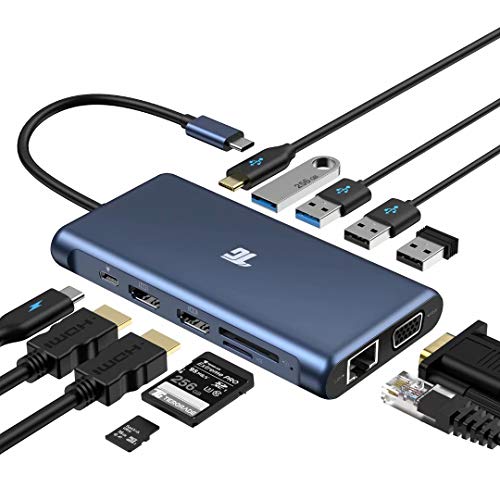
Tiergrade USB-C Docking Station, 12-in-1 Triple Display Laptop Dock for MacBook and Windows with 2 HDMI, VGA, 100W PD3.0, RJ45 Ethernet, 4 USB Ports, TF/SD Card Reader
Two HDMI monitors, wired internet, four USB ports and your laptop's charger, all through one cable.
Before you buy a dock, check how many external monitors each laptop can run. Some laptops only support one, whatever the dock offers.
Software only: nothing to buy
If each computer keeps its own screen and you only want one keyboard and mouse, software can do it over your home network. You move the mouse off the edge of one screen and it appears on the other. Microsoft's free PowerToys includes a tool for this called Mouse Without Borders, and some Logitech mice and keyboards do the same with Logitech Flow.
The catch is the work laptop. Many employers don't allow you to install software like this, and a switch needs nothing installed at all. For a work and personal pair, hardware is usually the safer choice.
Keep the wiring tidy
- Mount the switch under the desk or on the inside of a leg with two-sided mounting tape, where you can reach the button without seeing the box.
- Label both ends of each cable. With two computers there are twice as many, and they look alike.
- Raise the monitors on a desk arm mount so the laptops fit underneath, as in the photo above.
- Buy cables the right length. Two computers' worth of spare cable is a lot to hide.
For hiding the cables themselves, see my desk cable management guide.